
How to add a Book Now button to your website
A book now button can reduce your booking admin
Adding a Book Now button to your website gives customers a simple way to view availability and book your Spaces online, directly from your website.
This can help increase booking revenue and Space utilisation while reducing the administrative effort involved in responding to enquiries and manually managing bookings.
If your website includes a page showcasing your Spaces, this is an ideal place to add your Book Now button

Where should your Book Now button link?
Meeting Hub provides different options depending on how many Spaces and Locations your organisation manages.
- Organisations with one or two Spaces: We recommend linking customers directly to the relevant Space. Open the Space landing page in Meeting Hub, copy the URL and use this as the link behind your website’s Book Now button.
- Organisations with multiple Locations or Spaces: We recommend linking customers to your Find a Space search page. This allows Bookers to search and filter available Spaces based on criteria such as location, date, time, Space Type, capacity, price and Amenities. Copy the URL from your Find a Space landing page and use this as the link behind your Book Now button.
The exact steps for adding a button will vary depending on the platform used to manage your website, but the process is generally quick and straightforward.
Adding a Book Now button in WordPress
WordPress includes a built-in Button block that can be added to most pages and posts.
First, edit the page or post where you would like your Book Now button to appear.
Click the + icon to add a new block, then search for and select the Buttons block.
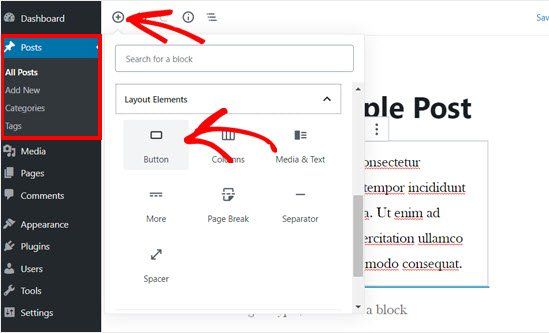
Click inside the button and enter the text you would like displayed, for example: Book Now
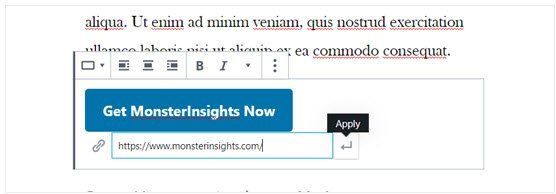
Next, add the Meeting Hub URL you would like customers to visit when they click the button.
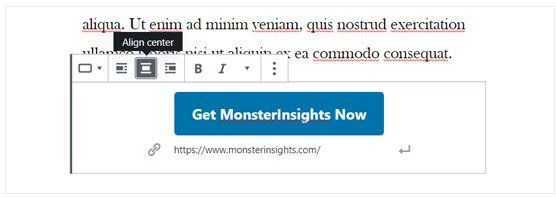
You can then use the WordPress block settings to adjust the alignment and appearance of your button to suit your website.
Depending on your WordPress theme, you may be able to customise options such as the button style, background colour, text colour and border.
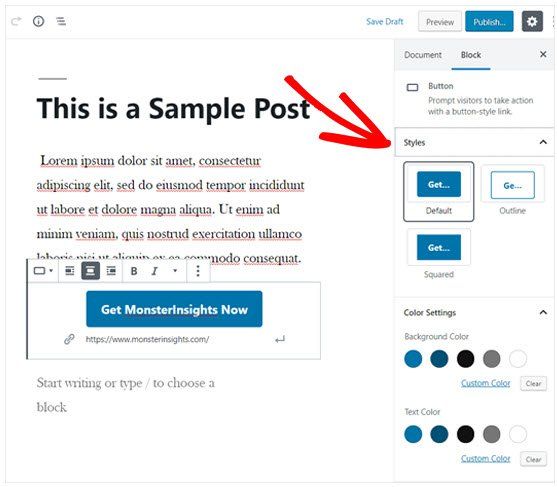
Choose a style that makes the booking action clear and consistent with your organisation's website branding.
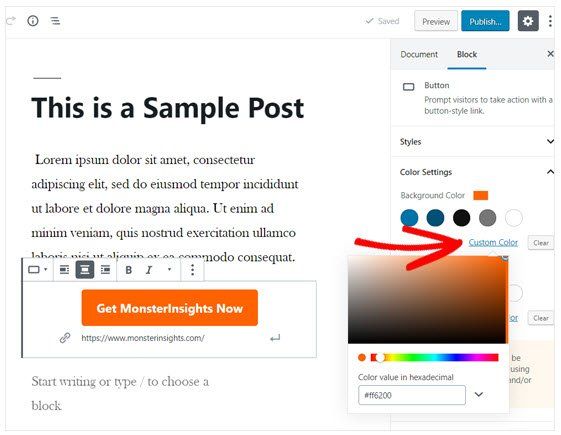
Once you are happy with the button, save or publish your changes and test the button from your live website to confirm that it opens the correct Meeting Hub page.
Make it easy for customers to book from other channels
In addition to adding a Book Now button to your website, consider adding booking links to your organisation's social media profiles and other digital channels.
You can also read our How to add a booking button to your Facebook Page! article for further guidance.