
How to Set Up a Security Bond for a Space
How to Set Up a Security Bond for a Space
Meeting Hub Pro customers can add a security bond to individual rooms, spaces or assets.
A security bond can help protect your organisation against damage, additional cleaning costs or other conditions associated with hiring a space. This article explains how to:
- Configure the security bond amount.
- Create the required security bond email templates.
- Set up the automated email workflows.
Before you begin
Make sure you have:
- Access to manage the applicable space.
- Permission to edit email templates and workflows.
- Confirmed the security bond amount and your organisation’s collection and refund terms.
Configure the security bond amount
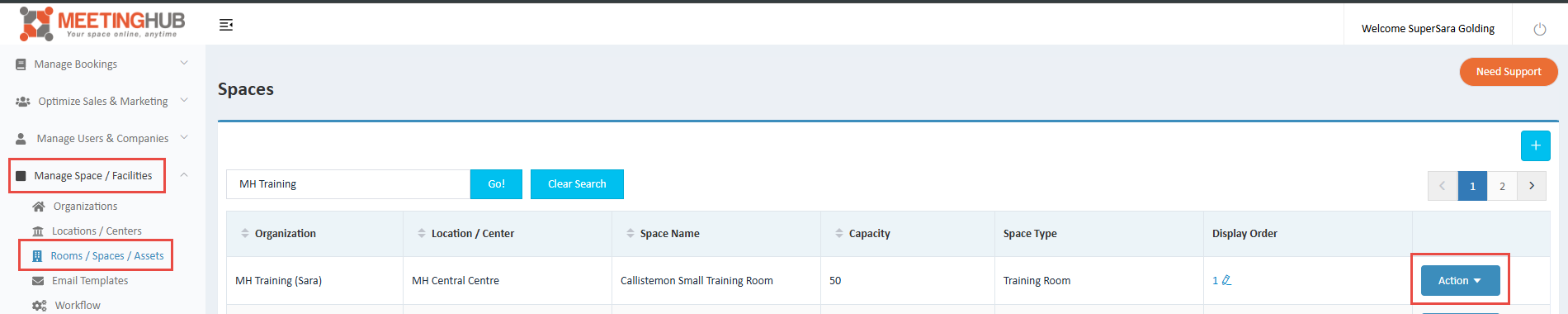
- From the Administration menu, go to Manage Spaces / Facilities.
- Select Rooms / Spaces / Assets.
- Find the space you want to update.
- Select the Actions button beside the space and choose Edit.
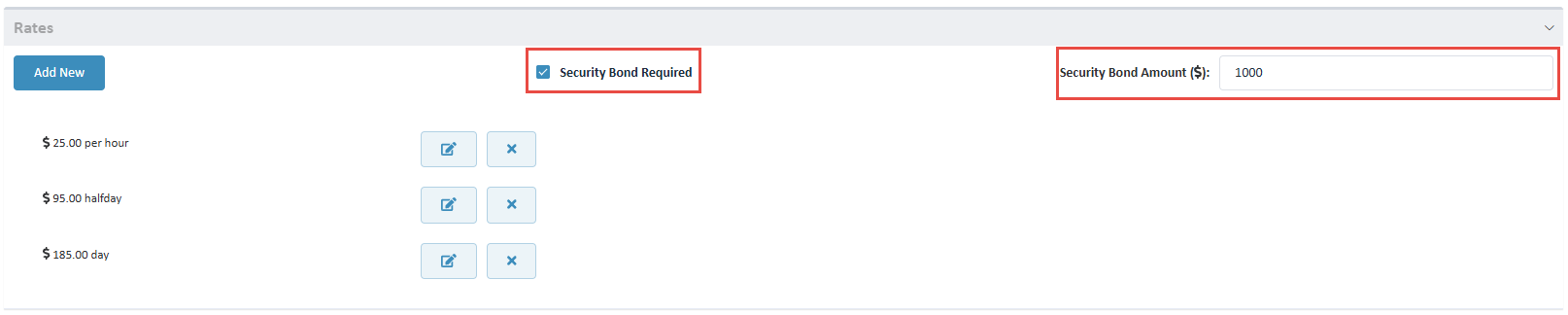
- Scroll to the Rates section.
- Select Security Bond Required.
- Enter the amount to be charged in the Security Bond Amount ($) field.
-
- Scroll to the bottom of the page and select Save.
The security bond is now configured for that space.
Create the security bond email templates
Once the bond has been added to the space, create the emails that will be sent when the bond is collected and refunded.
You will ordinarily need the following two templates:
- (Transaction Date) Security Bond Requirements
- Security Bond Refund (Day After)
Create the bond collection email
- Go to Manage Spaces / Facilities > Email Templates.
- Check whether an email template named Transaction Date Security Bond Requirements already exists.
- If the template does not exist, select the + button to create it.
- Enter the email subject in the Email Subject field.
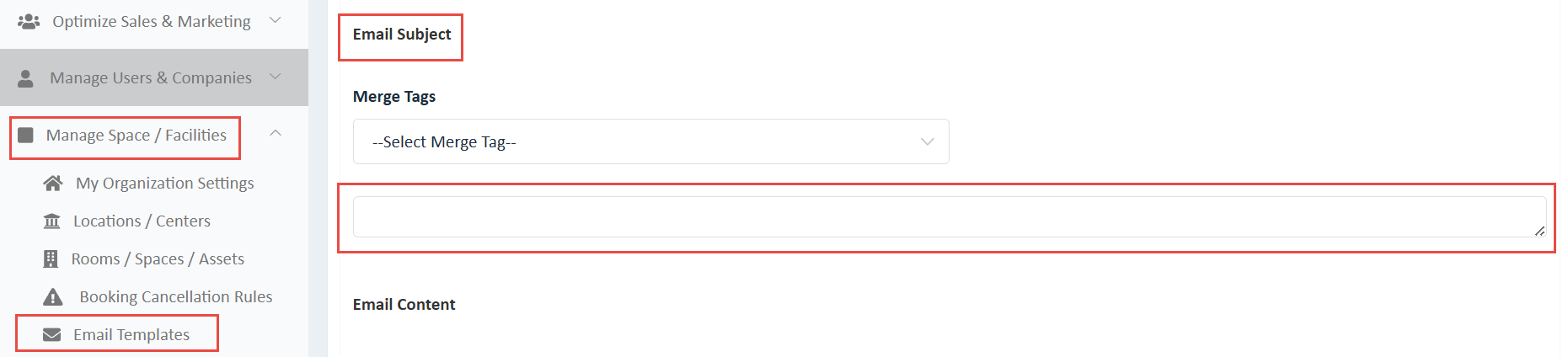
- Add or update the email content to reflect your organisation’s security bond requirements.
- Use the available Merge Tags to personalise the email and automatically include relevant booking information.
For example, merge tags may be used to include details such as the customer’s first name, booking number, space name or booking date.
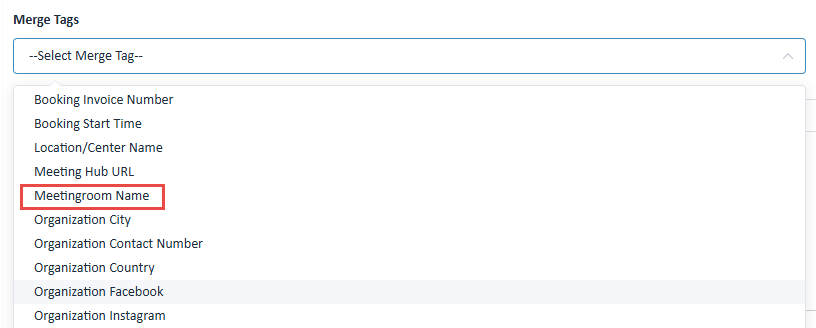
Review the email content and select Save.
Create the bond refund email
Repeat the steps above to create or update the Security Bond Refund Day After email template.
This email should explain your organisation’s bond inspection and refund process, including any expected refund timeframes or conditions.
Configure the automated email workflows
After creating the email templates, configure the workflows that determine when each email will be sent.
- Configure the Transaction Date Security Bond Requirements email against the appropriate Transaction Date Workflow.
- Configure the Security Bond Refund Day After email against the appropriate Event Date Workflow.
See How to Configure Workflows in Meeting Hub for detailed workflow setup instructions.
Test the security bond process
Before making the process available to customers:
- Create a test booking for the applicable space.
- Confirm that the correct security bond amount is applied.
- Check that the bond collection email is sent at the expected time.
- Confirm that the refund email workflow is scheduled correctly.
- Review the emails to ensure all merge tags display the correct information.
Testing the complete process helps ensure customers receive clear and accurate security bond instructions.